

CloudLink user guide
The window
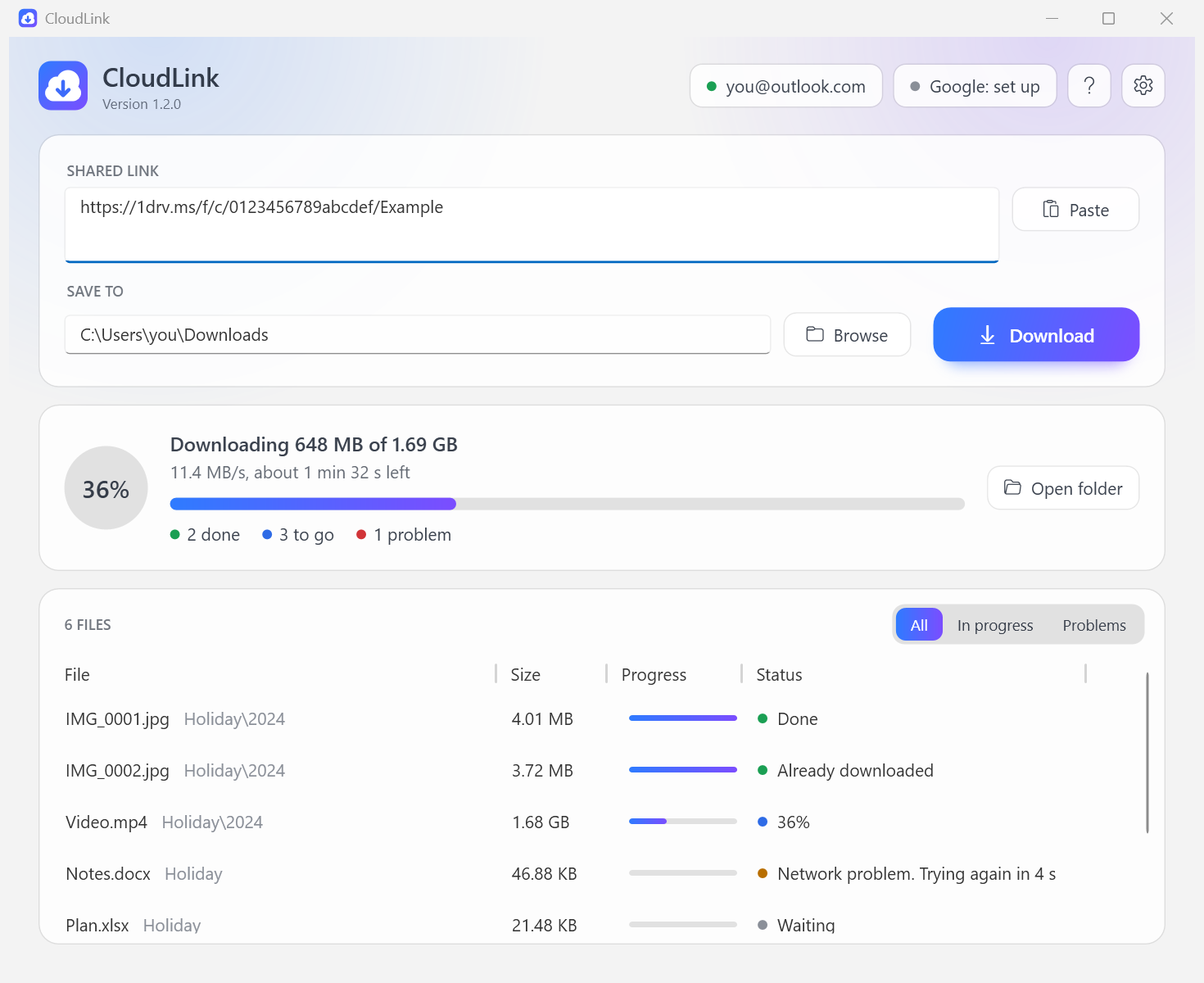
From top to bottom:
- Accounts, Help and Settings (top right). A green dot means that account is signed in. Click an account to sign in or out. ? or F1 opens Help.
- Shared link and Save to. What to download and where it goes. Download starts; while a download runs the same spot shows Stop.
- Status. What is happening now: overall progress, speed, time left, and counts of files done, to go, and with problems.
- Files. Every file with its own progress and status. In progress and Problems narrow the list.
Downloading
- Paste a share link. Several links go on separate lines. You can also drop a link on the window.
- Check the Save to folder. A shared folder named Holiday is saved as
<Save to>\Holiday\.... - Press Download.
CloudLink first looks through the link to find every file, then downloads four files at a time (changeable in Settings).
Stopping and continuing
Press Stop at any time. Finished files stay; unfinished ones are kept with a .part ending. Press Continue (or Download with the same link and folder, even days later) and CloudLink carries on from where it stopped. Files that are already complete are not downloaded again.
The same applies after a lost connection, sleep, a crash or a reboot.
What the statuses mean
| Status | Meaning |
|---|---|
| Waiting | In the queue. |
| a percentage | Downloading now. |
| Checking | Downloaded; being compared with the service's checksum. |
| reason. Trying again in n s | Something went wrong and CloudLink is retrying on its own. |
| Waiting for the network to come back | The PC is offline. Nothing is lost; it continues when the network returns. |
| Done | Complete and verified. |
| Already downloaded | The file was there from an earlier run. |
| Skipped: reason | The item has no file content, for example a Google Form. |
| Failed: reason | CloudLink gave up after repeated attempts. Press Try again. |
| Stopped | You pressed Stop while it was downloading. |
Accounts
OneDrive and SharePoint
Press Download with a OneDrive link, or click Microsoft: sign in. Your browser opens; sign in with the Microsoft account that can open the link. You do not need an Azure account, a tenant or anything else from Microsoft beyond that account.
Use the kind of account that matches the link: a personal Microsoft account for links from a personal OneDrive (1drv.ms, onedrive.live.com), a work or school account for links from an organisation (...sharepoint.com). A personal-OneDrive link shared with anyone can be opened with any personal account.
Microsoft's permission page says the app can edit your files. Microsoft Graph only opens share links for apps holding a read-write permission, so there is no way around asking for it. CloudLink only downloads: it never uploads, changes or deletes files. (Opening a link records your account as having opened it, exactly as opening it in a browser does.) The page also calls the app unverified, which is about a Microsoft business programme and not about the program itself.
If the button reads Microsoft: set up instead, this copy of CloudLink was built without an application ID and needs one entered in Settings; see APP-REGISTRATION.md.
Work or school accounts. By default, organisations do not let their people approve an app like this themselves. If Microsoft's page says Need admin approval, an administrator has to approve CloudLink once for the organisation; APP-REGISTRATION.md has the link to send them and the alternatives.
Google Drive
Google does not let a program read Drive without credentials created by its user. This is a one-time setup of about five minutes at https://console.cloud.google.com:
Create a project (any name).
Open APIs & Services → Library, find Google Drive API, press Enable.
Then choose one, or both:
For links anyone can open: an API key
- APIs & Services → Credentials → Create credentials → API key.
- Copy the key into Settings → API key.
For private links: sign-in
- APIs & Services → OAuth consent screen: choose External, fill in the app name and your address, and add your own Google address under Test users.
- Credentials → Create credentials → OAuth client ID, type Desktop app.
- Copy the client ID and client secret into Settings, then click Google: set up in the main window to sign in.
While the consent screen is in Testing, Google ends the sign-in after seven days and CloudLink asks you to sign in again. Publishing the consent screen removes that limit.
Troubleshooting
| What you see | What to do |
|---|---|
| Not found, or the link no longer works | The link is incomplete, was withdrawn, or the signed-in account may not open it. Open it in a browser with the same account to check. |
| Access denied | Sign in with the account the item was shared with. |
| Your organisation requires an administrator to approve CloudLink / Need admin approval in the browser | Your work or school does not let you approve apps yourself. Close the page, press Stop in CloudLink if it is still waiting, and see Work and school accounts. |
| The Microsoft sign-in was not finished in time | The browser page was closed or left open without finishing. Press Download to try again. If the page said Need admin approval, see the row above. |
| The sign-in was cancelled, or the permission was not granted | Press Download to try again and accept the permission page; CloudLink cannot work without it. |
| The service asked to slow down | Nothing; CloudLink waits and continues. If it happens a lot, lower Files downloaded at the same time in Settings. |
| Not enough free space | Choose another folder or free some space, then press Download again. |
| Sign-in page says the app is not verified (Google) | Expected for your own project in Testing. Choose Advanced → Go to .... |
| A Google document fails with a size error | Documents over 10 MB can only be exported when signed in, not with an API key. |
| Windows says Unknown publisher when starting CloudLink | See SIGNING.md. |
| Something else | Help → Open log shows what happened, with the service's own error text. |
Where things are kept
%LOCALAPPDATA%\CloudLink holds:
settings.json: your settings, including the address of each signed-in account and the last folder used. The Google API key and client secret in it are encrypted for your Windows account.microsoft.token,google.token: the sign-ins, encrypted for your Windows account.cloudlink.log: the log.
Deleting the folder resets CloudLink. Downloaded files are tagged as coming from the internet, the same way browsers tag them, so Windows and Office apply their usual caution when you open them.